NAB User Guide
NAB is a desktop app for NUS students to manage contacts across multiple modules, project groups, and CCAs, optimized for use via a Command Line Interface (CLI) while still having the benefits of a Graphical User Interface (GUI). If you can type fast, NAB can help you organize and retrieve context-specific contacts and track commitments faster than traditional GUI apps.
Quick Start
Ensure you have Java
17or above installed in your Computer.
Mac users: Ensure you have the precise JDK version prescribed here.Download the latest
.jarfile from here.Copy the file to the folder you want to use as the home folder for your AddressBook.
Open a command terminal,
cdinto the folder you put the jar file in, and use thejava -jar addressbook.jarcommand to run the application.
A GUI similar to the below should appear in a few seconds. Note how the app contains some sample data.
Type the command in the command box and press Enter to execute it.
e.g. typinghelpand pressing Enter will open the help window.Some example commands you can try:
list: Lists all contacts.add n/John Doe p/98765432 e/johnd@example.com a/John street, block 123, #01-01: Adds a contact namedJohn Doeto the address book.delete n/John Doe: Deletes a contact with name 'John Doe' from the address book.clear: Deletes all contacts.exit: Exits the app.
Refer to the Features below for details of each command.
Features
Notes about the command format:
Words in
UPPER_CASEare the parameters to be supplied by the user.
e.g. inadd n/NAME,NAMEis a parameter which can be used asadd n/John Doe.Items in square brackets are optional.
e.gn/NAME [t/TAG]can be used asn/John Doe t/friendor asn/John Doe.Items with
...after them can be used multiple times including zero times.
e.g.[t/TAG]...can be used as(i.e. 0 times),t/friend,t/friend t/familyetc.Parameters can be in any order.
e.g. if the command specifiesn/NAME p/PHONE_NUMBER,p/PHONE_NUMBER n/NAMEis also acceptable.Extraneous parameters for commands that do not take in parameters (such as
help,list,exitandclear) will be ignored.
e.g. if the command specifieshelp 123, it will be interpreted ashelp.Tags are case-insensitive. t/Friends and t/friends are treated as 1 unique tag. Multiple use of the same tags with different case sensitivity should not be used. e.g
find n/John Doe t/Friends t/friendsIf you are using a PDF version of this document, be careful when copying and pasting commands that span multiple lines as space characters surrounding line-breaks may be omitted when copied over to the application.
Viewing help : help
Shows a message explaining how to access the help page.

Format: help
Adding a person: add
Adds a person to the address book.
Format: add n/NAME p/PHONE_NUMBER [e/EMAIL] [a/ADDRESS] [t/TAG]... [pfp/PHOTO_PATH]
Tip: Can associate 0 or more tags during the add process
- Contact cannot be added if the added phone number is already registered in the address book.
Examples:
add n/John Doe p/98765432 e/johnd@example.com a/John street, block 123, #01-01add n/Betsy Crowe t/friend e/betsycrowe@example.com a/Newgate Prison p/1234567 t/criminaladd n/Kim Chaewon p/67676969 pfp/C:\Users\User\Desktop\Photos\Le_sserafim.jpgadd n/Hibiscus p/12345678 t/enemy pfp//home/Desktop/Pictures/hibiscus_flower.png
Listing all persons : list
Shows a list of all persons in the address book.
Format: list
Editing a person : edit
Edits an existing person in the address book.
Format: edit n/NAME [p/PHONE_NUMBER] [e/EMAIL] [a/ADDRESS] [t/TAG]... -- [n/NAME] [p/PHONE_NUMBER] [e/EMAIL] [a/ADDRESS] [t/TAG]... [pfp/PHOTO_PATH]
Tip: If there are multiple contacts with the same NAME, utilize the other optional parameters to narrow down the updating of the correct contact. This can be done by supplying any of the following information just after edit n/NAME: Phone number, Email, Address or Tag.
- The segment before
--identifies which contact to edit. - The segment after
--specifies fields to be updated.- Updatable fields:
n/NAME,p/PHONE_NUMBER,e/EMAIL,a/ADDRESS,t/TAG,pfp/PHOTO_PATH.
- Updatable fields:
n/NAMEin the target segment is required.- Existing values will be updated to the input values.
- To add tags, you can specify new tags by typing
t/TAGin the updated field. - To delete a specific tag, type an existing tag in the updated field.
- You can remove all the person’s tags by typing
t/without specifying any tags after it. - Tags are case-insensitive.
Additional information for updating profile picture:
- For
pfp/PHOTO_PATH, accepted file extensions are.png,.jpg, and.jpeg. PHOTO_PATHcan be absolute (e.g.,C:/Users/Alex/Pictures/me.jpg) or relative to the app folder (e.g.,images/me.png).- The file must exist; NAB will copy it into
data/images/.
Examples:
edit n/John Doe -- p/91234567 e/johndoe@example.comedits John Doe's phone and email.edit n/John Doe p/98765432 -- n/Johnathan Doe t/teammateuniquely identifies John Doe by phone, then updates name and tags.edit n/Betsy Crower -- t/clears all tags for Betsy Crower.edit n/Alex Yeoh -- pfp/C:/Users/Alex/Pictures/profile.jpgupdates Alex Yeoh's profile picture.
Locating persons by name: find
Finds persons who match the given contact information.
Format: find n/NAME [p/PHONE_NUMBER] [e/EMAIL] [a/ADDRESS] [t/TAG]...
Tip: If there are multiple contacts with the same NAME, utilize the other optional parameters to narrow down the
search to a specific contact. This can be done by supplying any of the following information just after find n/NAME: Phone number, Email, Address or Tag.
- The search is case-insensitive. e.g.
hanswill matchHans - Only full words will be matched e.g.
Hanwill not matchHans - Order of parameters does not matter.
Examples:
find n/Johnreturns contacts namedJohnfind n/John t/cs2106returns contacts namedJohnwith tagcs2106
Filtering persons by context : filter
Finds persons with the given tag(s).
Format: filter t/TAG[, TAG]...
- The search is case-insensitive. e.g.
friendwill matchFriendtag. - Only full words will be matched e.g.
friewill not matchfriendtag.
Examples:
filter t/friendsfinds all contacts that are taggedfriendsfilter t/cs2103, cs2105, cs2109sfinds all contacts that have any of these tags.
Pinning a person : pin
Pins the person identified by their name.
Format: pin n/NAME [p/PHONE_NUMBER] [e/EMAIL] [a/ADDRESS] [t/TAG]...
- Pinned persons are shown first when the
listcommand is used. - The
NAMEis case-insensitive. e.g.aLeX YeOHwill matchAlex Yeoh - Only full words will be matched e.g.
Alex Yeowill not matchAlex Yeoh - Order of parameters does not matter.
Examples:
pin n/John Doepins John Doe when the name uniquely identifies the contact.pin n/John Doe p/91234567pins the matching John Doe contact by name and phone number.
Unpinning a person : unpin
Unpins the person identified by their name.
Format: unpin n/NAME [p/PHONE_NUMBER] [e/EMAIL] [a/ADDRESS] [t/TAG]...
- The
NAMEis case-insensitive. e.g.aLeX YeOHwill matchAlex Yeoh - Only full words will be matched e.g.
Alex Yeowill not matchAlex Yeoh - Order of parameters does not matter.
Examples:
unpin n/John Doeunpins John Doe when the name uniquely identifies the contact.unpin n/John Doe p/91234567unpins the matching John Doe contact by name and phone number.
Assigning tag(s) to person(s) : tag
Assigns one or more tags to one or more contacts in one command.
Format: tag label/TAG_TO_ASSIGN [label/TAG_TO_ASSIGN]... n/NAME [p/PHONE] [e/EMAIL] [a/ADDRESS] [t/TAG]... [n/NAME [p/PHONE] [e/EMAIL] [a/ADDRESS] [t/TAG]...]...
Tip: Use optional fields immediately after each n/NAME to disambiguate contacts with the same name.
How it works:
label/...are the tags that will be assigned to all specified contacts.- Contact segments start with
n/NAME. - Optional fields after a given
n/NAMEapply only to that contact segment. - The tag-assignment segment (
label/...) and person segments (n/...) cannot be mixed. Alllabel/...entries must appear before the firstn/.... - If a tag does not exist yet, NAB creates it automatically.
- If a person segment matches multiple contacts, NAB shows those matches and asks for a more specific command.
Examples:
tag label/CS2103 label/CS2030S n/Alice n/Bob- Suppose there are multiple
AliceandBob, an enriched search would betag label/CS2103 label/CS2030S n/Alice p/81234567 n/Bob a/Clementi, where Alice has a phone number of81234567and Bob has an address ofClementi
Deleting a person : delete
Deletes the specified person from the address book.
Format: delete n/NAME [p/PHONE_NUMBER] [e/EMAIL] [a/ADDRESS] [t/TAG]...
Tip: If there are multiple contacts with the same NAME, utilize the other optional parameters to narrow down the
deletion of the correct contact. This can be done by supplying any of the
following information just after delete n/NAME: Phone number, Email, Address or Tag.
- The
NAMEis case-insensitive. e.g.aLeX YeOHwill matchAlex Yeoh - Only full words will be matched e.g.
Alex Yeowill not matchAlex Yeoh - Order of parameters does not matter.
Examples:
delete n/Alex Yeohdeletes the contact with a matching name.- Suppose there are multiple
Alex Yeoh, an enriched search would bedelete n/Alex Yeoh t/cs2103 t/cs2105
Clearing all entries : clear
Clears all entries from the address book.
Format: clear
Adding an event : event add
Create a new event for a specified person.
Format: event add title/TITLE [desc/DESCRIPTION] start/START_DATE end/END_DATE to/NAME [p/PHONE_NUMBER] [e/EMAIL] [a/ADDRESS] [t/TAG]...
Tip: If there are multiple contacts with the same NAME, utilize the other optional parameters to narrow down the
creation of event for the correct contact. This can be done by supplying any of the
following information just after event ... to/NAME: Phone number, Email, Address or Tag.
- The
NAMEis case-insensitive. e.g.aLeX YeOHwill matchAlex Yeoh - Only full words will be matched e.g.
Alex Yeowill not matchAlex Yeoh - Order of parameters does not matter.
- The date time format for start/ and end/ is
YYYY-MM-DD HHmmorDD-MM-YYYY HHmm
Examples:
event add title/CS2109S Meeting desc/Final discussion on problem set 1 start/2026-03-25 0900 end/2026-03-25 1000 to/David Liadds an event to David Li.- Suppose there are multiple
David Li, an enriched search would beevent add title/CS2109S Meeting desc/Final discussion on problem set 1 start/2026-03-25 0900 end/2026-03-25 1000 to/David Li p/99272758
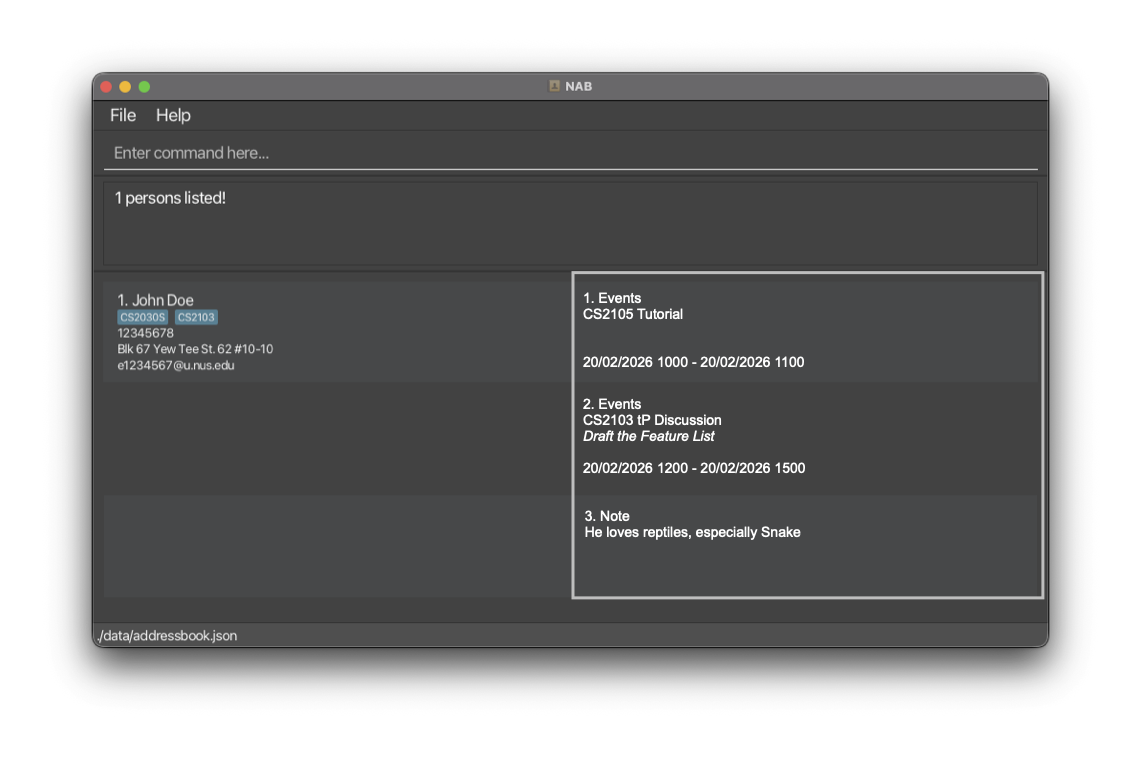
View an event : event view
View all events for a specified person
Format: event view n/NAME [p/PHONE_NUMBER] [e/EMAIL] [a/ADDRESS] [t/TAG]...
Tip: If there are multiple contacts with the same NAME, utilize the other optional parameters to
view the events of the correct contact. This can be done by supplying any of the
following information just after event view n/NAME: Phone number, Email, Address or Tag.
- The
NAMEis case-insensitive. e.g.aLeX YeOHwill matchAlex Yeoh - Only full words will be matched e.g.
Alex Yeowill not matchAlex Yeoh
Examples:
event view n/Bernice Yuviews all events that Bernice Yu has.- Suppose there are multiple
Bernice Yu, an enriched search would beevent view n/Bernice Yu e/berniceyu@example.com
Delete an event : event delete
Delete an event for a specified person
Format: event delete title/TITLE start/START_DATE end/END_DATE n/NAME [p/PHONE_NUMBER] [e/EMAIL] [a/ADDRESS] [t/TAG]...
Tip: If there are multiple contacts with the same NAME, utilize the other optional parameters to narrow down the
deletion of event for the correct contact. This can be done by supplying any of the
following information just after event ... n/NAME: Phone number, Email, Address or Tag.
- The
NAMEis case-insensitive. e.g.aLeX YeOHwill matchAlex Yeoh - Only full words will be matched e.g.
Alex Yeowill not matchAlex Yeoh - Order of parameters does not matter.
- The date time format for start/ and end/ is
YYYY-MM-DD HHmmorDD-MM-YYYY HHmm
Examples:
event delete title/Meeting start/2026-03-12 1100 end/2026-04-12 2359 n/David Lideletes the event that titled Meeting which starts at 12 March 2026 1100 and ends at 12 April 2026 2359 assigned to David Li.- Suppose there are multiple
David Li, an enriched search would beevent delete title/Meeting start/2026-03-12 1100 end/2026-04-12 2359 n/David Li p/99272758
Exiting the program : exit
Exits the program.
Format: exit
Exporting Contacts : export
Exports a list of contacts into a CSV formatted file.
Format: export t/EXPORT_TYPE f/FILENAME
EXPORT_TYPEdictates the scope of the export. Expected inputs areall(exports the entire address book) orcurrent(exports the currently filtered list)FILENAMEdictates the name of the target CSV file. Do not include the.csvextension in the input- The exported file is saved in the same directory that contains the current NAB data file.
- Order of parameters does not matter.
Examples:
- Exports all contacts stored in NAB into a CSV file :
export t/all f/save_file - Exports contacts from the currently filtered list :
export t/current f/save_file
Importing Contacts : import
Imports a list of contacts from a CSV formatted file.
Format: import t/IMPORT_TYPE f/FILENAME
IMPORT_TYPEdictates how the data is imported. Expected inputs areadd(appends the contacts from the list to existing address book) oroverwrite(replaces all the current address book information with contacts from the list).FILENAMEdictates the name of the source CSV file. Do not include the.csvextension in the input- The file to be imported must be located in the same directory as your current AddressBook data file.
- Any contacts in the CSV file that already exist in your current address book will be skipped to prevent duplicates.
- Rows in the CSV that are malformed or have missing mandatory fields will be safely skipped.
- Order of parameters does not matter.
Examples:
- Import from the CSV file and overwrite existing data in NAB :
import t/overwrite f/save_file - Import from the CSV file and append to the existing data in NAB :
import t/add f/save_file
Saving the data
AddressBook data are saved in the hard disk automatically after any command that changes the data. There is no need to save manually.
Editing the data file
AddressBook data are saved automatically as a JSON file [JAR file location]/data/addressbook.json. Advanced users are welcome to update data directly by editing that data file.
Caution:
If your changes to the data file makes its format invalid, AddressBook will discard all data and start with an empty data file at the next run. Hence, it is recommended to take a backup of the file before editing it.
Furthermore, certain edits can cause the AddressBook to behave in unexpected ways (e.g., if a value entered is outside the acceptable range). Therefore, edit the data file only if you are confident that you can update it correctly.
Archiving data files [coming in v2.0]
Details coming soon ...
FAQ
Q: How do I transfer my data to another Computer?
A: Install the app in the other computer and overwrite the empty data file it creates with the file that contains the data of your previous AddressBook home folder.
Known issues
- When using multiple screens, if you move the application to a secondary screen, and later switch to using only the primary screen, the GUI will open off-screen. The remedy is to delete the
preferences.jsonfile created by the application before running the application again. - If you minimize the Help Window and then run the
helpcommand (or use theHelpmenu, or the keyboard shortcutF1) again, the original Help Window will remain minimized, and no new Help Window will appear. The remedy is to manually restore the minimized Help Window.
Command summary
| Action | Format, Examples |
|---|---|
| Add | add n/NAME p/PHONE_NUMBER [e/EMAIL] [a/ADDRESS] [t/TAG]... [pfp/PHOTO_PATH] e.g., add n/James Ho p/22224444 e/jamesho@example.com a/123, Clementi Rd, 1234665 t/friend t/colleague pfp/images/james.jpg |
| Clear | clear |
| Delete | delete n/NAME [p/PHONE_NUMBER] [e/EMAIL] [a/ADDRESS] [t/TAG]...e.g., delete n/Alex Yeoh t/cs2103 t/cs2105 |
| Edit | edit n/NAME [p/PHONE_NUMBER] [e/EMAIL] [a/ADDRESS] [t/TAG]... -- [n/NAME] [p/PHONE_NUMBER] [e/EMAIL] [a/ADDRESS] [t/TAG]... [pfp/PHOTO_PATH]e.g., edit n/James Lee e/jameslee@example.com -- t/CS2100 pfp/images/james.jpg |
| Event Add | event add title/TITLE [desc/DESCRIPTION] start/START_DATE end/END_DATE to/NAME [p/PHONE_NUMBER] [e/EMAIL] [a/ADDRESS] [t/TAG]...e.g., event add title/CS2109S Meeting desc/Final discussion on problem set 1 start/2026-03-25 0900 end/2026-03-25 1000 to/David Li |
| Event Delete | event delete title/TITLE start/START_DATE end/END_DATE n/NAME [p/PHONE_NUMBER] [e/EMAIL] [a/ADDRESS] [t/TAG]...e.g., event delete title/Meeting start/2026-03-12 1100 end/2026-04-12 2359 n/David Li |
| Event View | event view n/NAME [p/PHONE_NUMBER] [e/EMAIL] [a/ADDRESS] [t/TAG]...e.g., event view n/Bernice Yu |
| Exit | exit |
| Filter | filter t/TAG[, TAG]...e.g., filter t/friends |
| Pin | pin n/NAME [p/PHONE_NUMBER] [e/EMAIL] [a/ADDRESS] [t/TAG]...e.g., pin n/John Doe p/91234567 |
| Unpin | unpin n/NAME [p/PHONE_NUMBER] [e/EMAIL] [a/ADDRESS] [t/TAG]...e.g., unpin n/John Doe p/91234567 |
| Find | find n/NAME [p/PHONE_NUMBER] [e/EMAIL] [a/ADDRESS] [t/TAG]...e.g., find n/James Jake p/67676969 |
| Help | help |
| List | list |
| Tag | tag label/TAG_TO_ASSIGN [label/TAG_TO_ASSIGN]... n/NAME [p/PHONE] [e/EMAIL] [a/ADDRESS] [t/TAG]... [n/NAME ...]...e.g., tag label/CS2103 label/CS2030S n/Alice n/Joe t/Family |
| Export | export t/EXPORT_TYPE f/FILENAMEe.g., export t/all f/save_file |
| Import | import t/IMPORT_TYPE f/FILENAMEe.g., import t/overwrite f/save_file |